Capture snags and make the PDF on site

Deficiency Management Best Practices

Strong Deficiency Management Best Practices starts with a consistent walkthrough, clear evidence, and fast reporting. Clear categories, photo evidence, deadlines, and fast reporting are what keep deficiencies moving toward closeout.

Quick answer

What are the best practices for deficiency management?

Strong deficiency management means capturing every item during the walkthrough with a photo, a location, and a trade; assigning a due date and responsible party; tracking status centrally; and issuing a dated PDF report after each visit. Consistency — the same fields every time — is what keeps deficiencies moving to completion, and generating the report on the device keeps the record current without an office step.

Learn more: a deficiency management app.

01

What teams need from Deficiency Management Best Practices

Project teams need a live record of open deficiencies, due dates, and trade responsibility.

Clear categories, photo evidence, deadlines, and fast reporting are what keep deficiencies moving toward closeout.

02

How Punch List & Site Audit fits the workflow

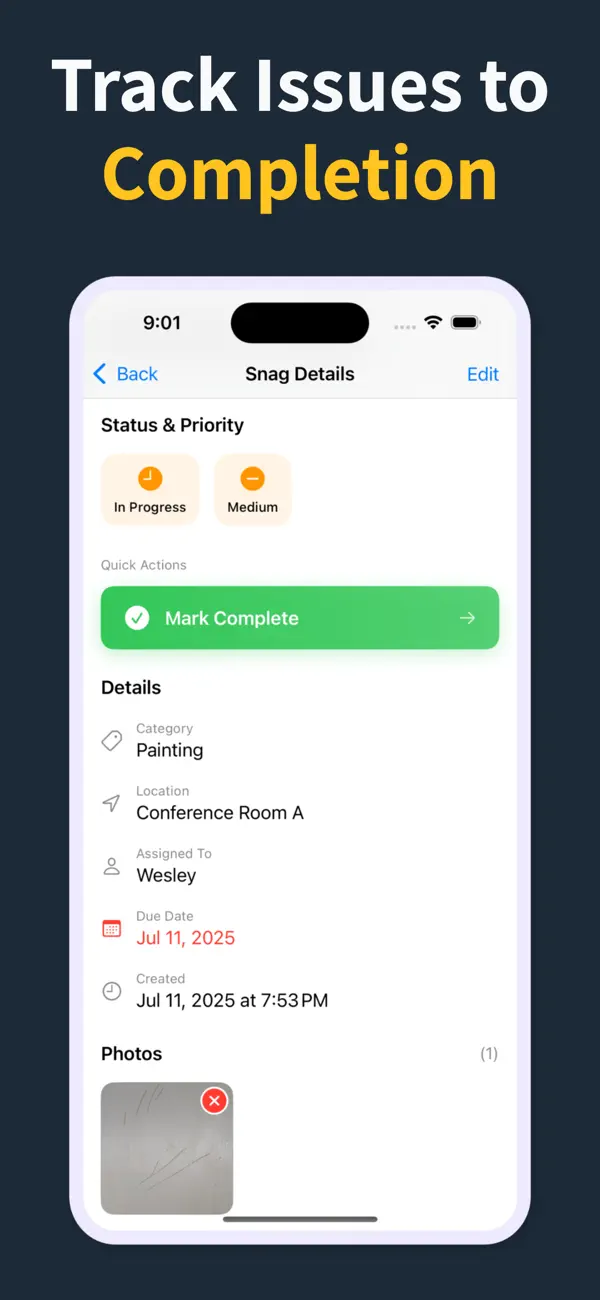
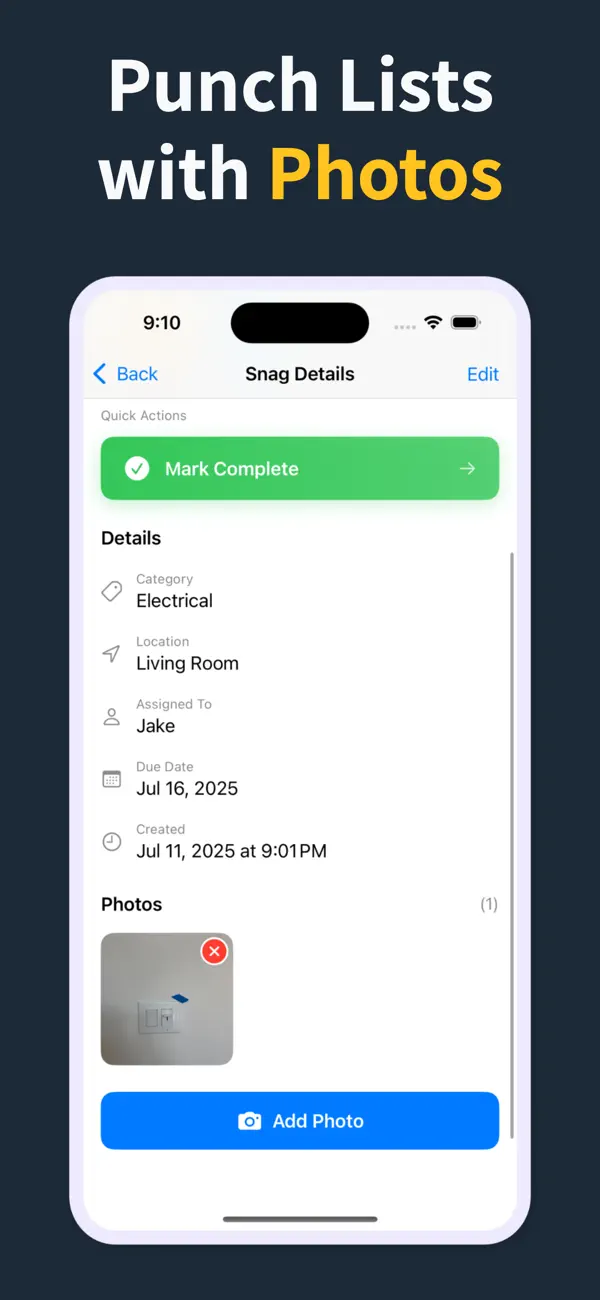
Each deficiency can carry location, trade, status, due date, notes, and photo evidence in one record.

That keeps walkthroughs consistent and makes PDF reporting fast at the end of every visit.

03

Why crews keep it on site

Instead of paper notes or static spreadsheets, the whole deficiency list stays live in the field and easy to share.

General contractors, consultants, and owners review the same structured record from first walk to final sign-off.

How it works

From walkthrough to report in three steps

Punch List & Site Audit keeps capture, assignment, review, and handoff in one iPhone workflow.

1

Create the project

Start a site, client, or renovation project and keep each job separated with progress counts and search.

2

Capture every snag on site

Add title, notes, location, photos, status, priority, category, assignee, and due date as you walk — a few taps per item, then Save & Add Another to keep the walkthrough moving.

3

Generate the PDF before you leave

Turn the list into a client-ready PDF with photos and item details right on site — no laptop, no retyping it later. Pro unlocks clean branded reports, export, and iCloud sync.

Feature proof

Specific proof from the app

Each feature below maps to the actual Punch List & Site Audit workflow: capture, annotate, organize, filter, report, and hand off.

Punch List app issue capture screen
Capture

Add snags without slowing the walk

Record the issue, description, location, and photos in one form, then use Save & Add Another to keep moving.

  • Title, description, and location fields
  • Camera and photo-library capture
  • Rapid repeat entry for walkthroughs
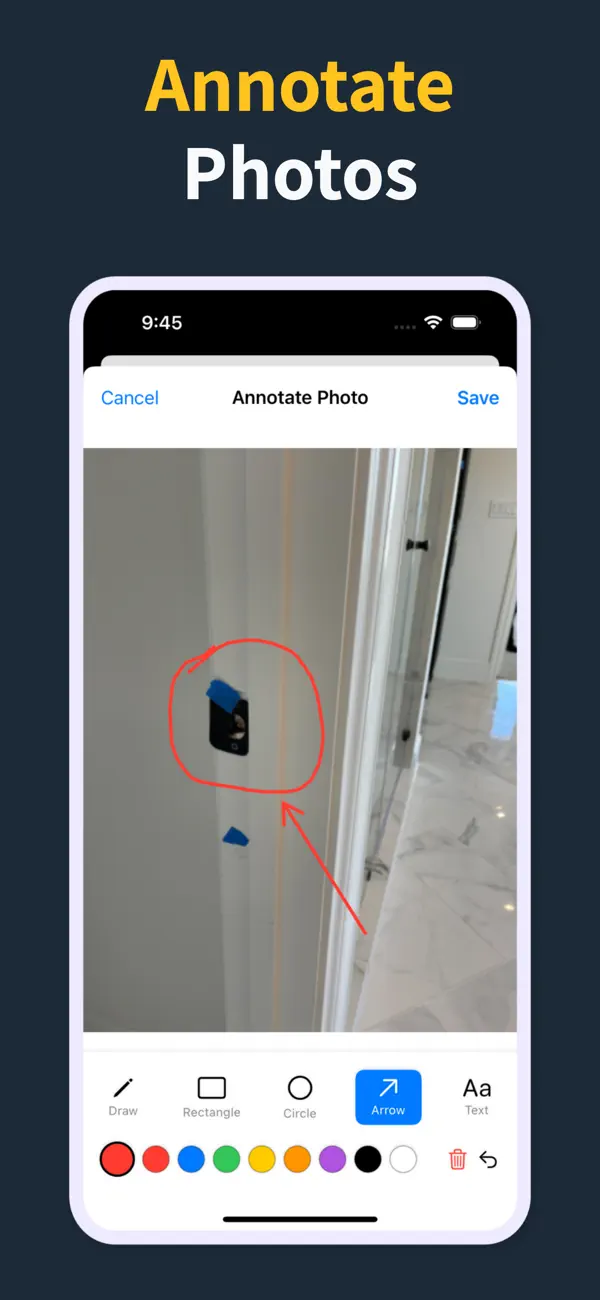
Punch List photo annotation tools
Photos

Mark exactly what needs work

Annotate photos before they go into the report, so subcontractors can see the exact defect and location.

  • Draw, rectangle, circle, arrow, and text tools
  • Undo/redo, selectable annotations, and color controls
  • Annotated images save back to the item
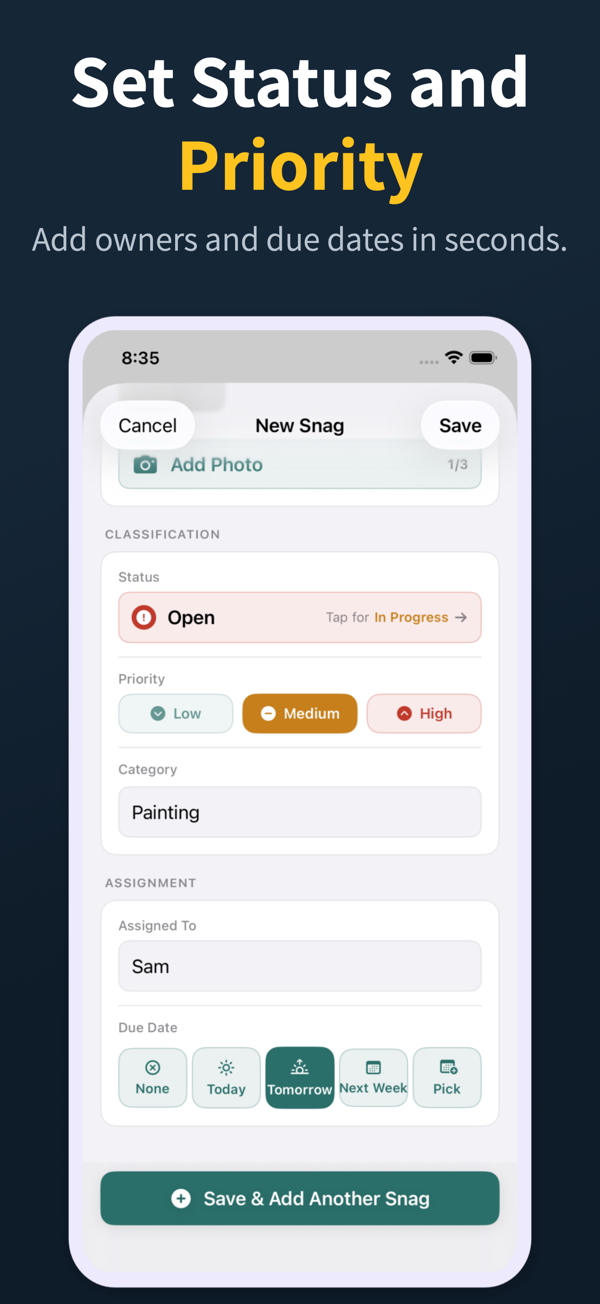
Punch List status, priority, assignment, and due date controls
Accountability

Assign, prioritize, and date the work

Each snag can carry status, priority, category, assignee, and due date so the list is actionable before handoff.

  • Open, in progress, and closed statuses
  • Low, medium, and high priority chips
  • Assignee suggestions and quick due-date choices
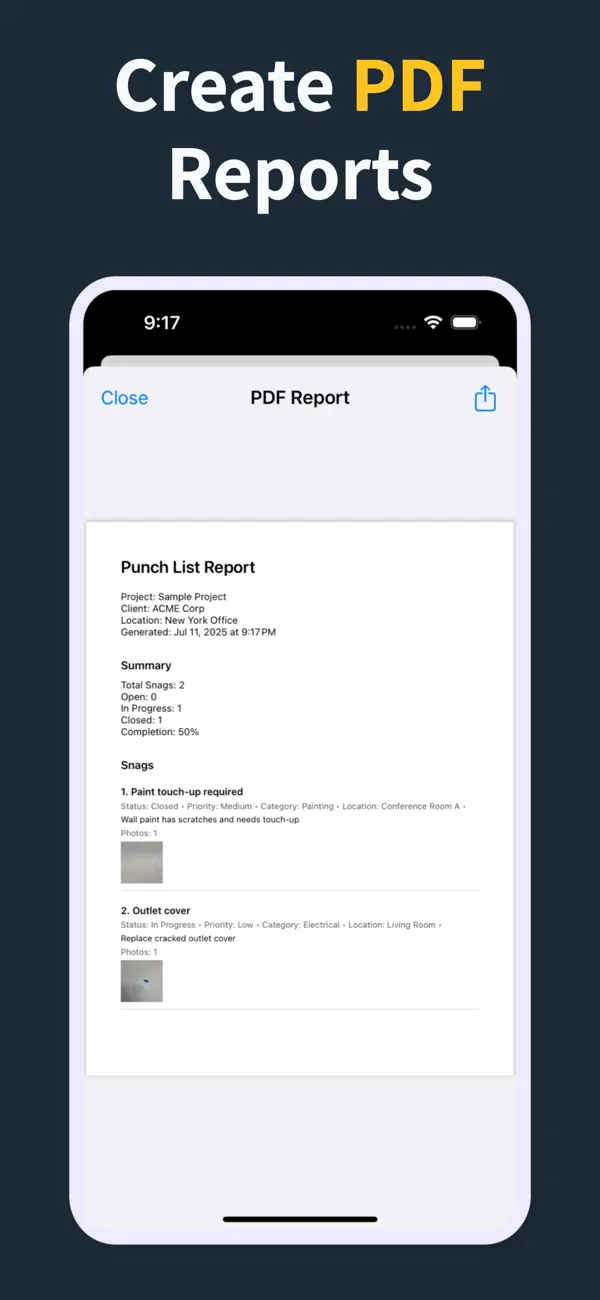
Punch List PDF report preview with photos and item details
Reports

Turn the list into a client-ready PDF on site

Generate a PDF with item numbers, status, priority, due dates, assignments, and inline photos right there in the field — so the report is done before you leave, not back at a laptop that night.

  • Build the report in the field, no laptop required
  • Pro unlocks clean PDFs and company branding
  • Share from the iOS share sheet before you drive off
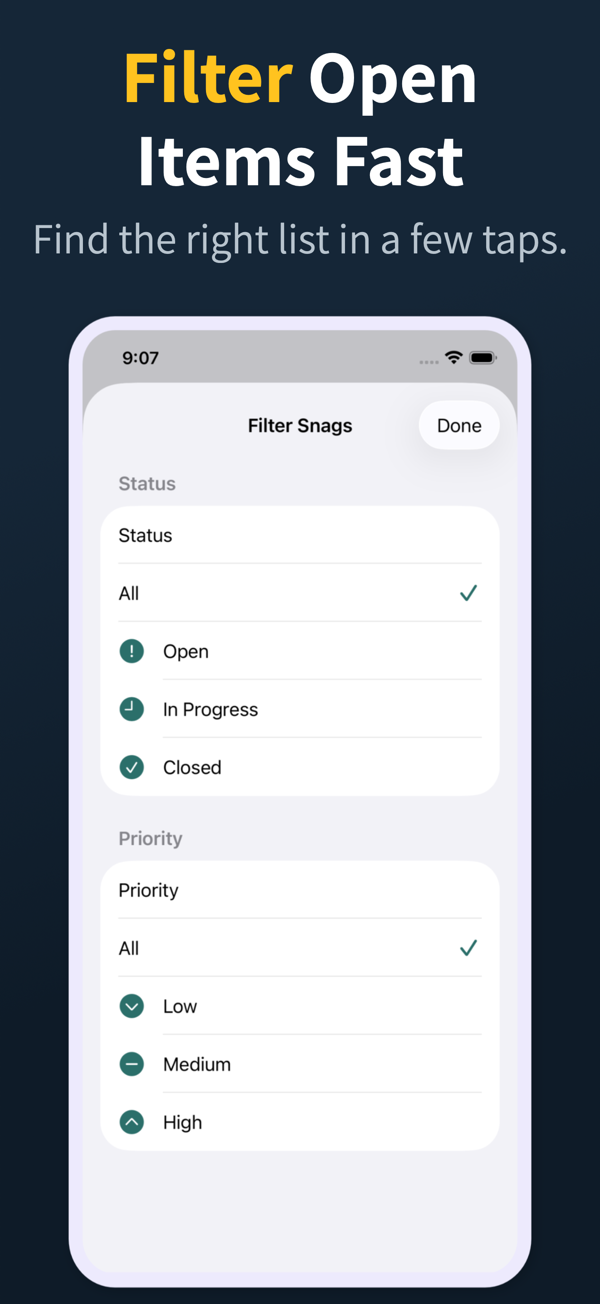
Punch List filter screen for open items and priority
Review

Find the right items fast

Search and filter snags by the fields teams actually use during closeout reviews.

  • Search title, description, location, category, and assignee
  • Filter by status, priority, category, and assignee
  • Grouped open, in-progress, and closed sections
Punch List project dashboard
Projects

Keep every site separated

Manage multiple projects with progress counts, project search, import, export, and iCloud sync for Pro workflows.

  • Project-level progress and open-item counts
  • Search across project name, client, and location
  • Pro unlocks project import/export and iCloud sync
04

Frequently asked questions

When should the deficiency list start on a project?

As soon as substantial performance is in sight — typically when trades finish their scope. Starting earlier lets subcontractors address items before demobilizing, which saves costly return trips later in closeout and speeds up holdback release.

How do I avoid deficiency disputes?

Attach an annotated photo and a timestamp to every item, and issue dated PDF reports after each walkthrough. Visual evidence beats memory and cuts disputes sharply, especially on fast-moving multi-trade projects.

Who should attend the deficiency walkthrough?

At minimum the general contractor and the owner or their representative; often the architect attends too. Subcontractors usually come for trade-specific walkthroughs once the initial list has been recorded.

How do I close out deficiencies efficiently?

Group items by trade in the report so each sub sees their full scope. Require a photo when an item is marked resolved, and re-walk the space before final sign-off to confirm nothing regressed.

Should I share the deficiency list with subcontractors?

Yes. A filtered PDF showing only their scope makes it easy for subcontractors to plan return visits and close items on time, without wading through a list cluttered with other trades' work.

05

Related Guides

Run deficiency lists and site inspections from your iPhone

Download Punch List & Site Audit on iOS. Capture snags with photos, mark up what needs fixing, and produce a clean PDF report right there in the field — no laptop, no typing the list back up at the office that night.

Download on the App Store
Scan to download