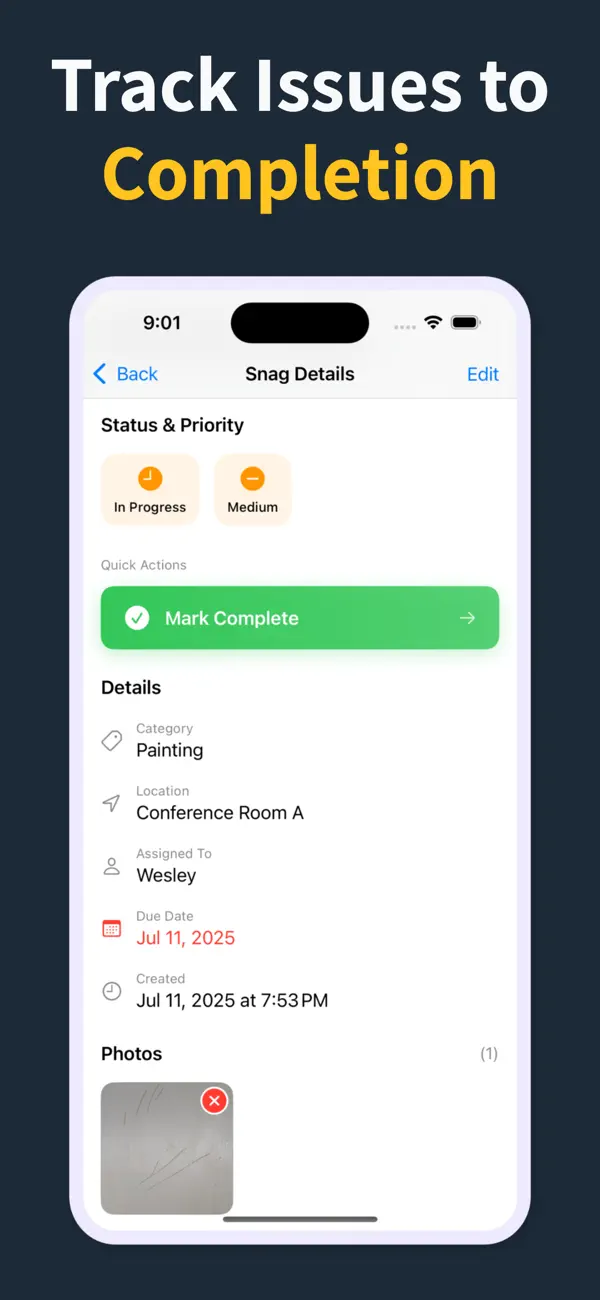
Capture snags and make the PDF on site

تقرير قائمة العيوب PDF

مخصص لـ تقرير قائمة العيوب PDF. يجمع التطبيق ملاحظات الموقع ومسؤولية كل تخصص وتقارير الإغلاق في مكان واحد.

إجابة سريعة

كيف أنشئ تقرير قائمة العيوب PDF؟

سجّل كل ملاحظة في Punch List & Site Audit بصورة وموقع وتخصص، ثم اضغط مرة واحدة لتصدير تقرير قائمة العيوب بصيغة PDF — ببنود مرقّمة وحالات ومواعيد نهائية وصور مدمجة — هناك مباشرة في الموقع. يُنشأ التقرير على هاتف iPhone، فيكون منجزاً ومُشاركاً قبل أن تغادر، دون حاسوب محمول ودون إعادة إدخال القائمة لاحقاً.

اعرف المزيد: سير عمل قائمة العيوب.

01

ما الذي تحتاجه الفرق من تقرير قائمة العيوب PDF

فرق snagging تحتاج إلى طريقة بسيطة لتسجيل العيوب وتتبع الإصلاحات والتحقق من الإقفال.

يجمع التطبيق ملاحظات الموقع ومسؤولية كل تخصص وتقارير الإغلاق في مكان واحد.

02

كيف ينسجم Punch List & Site Audit مع سير العمل

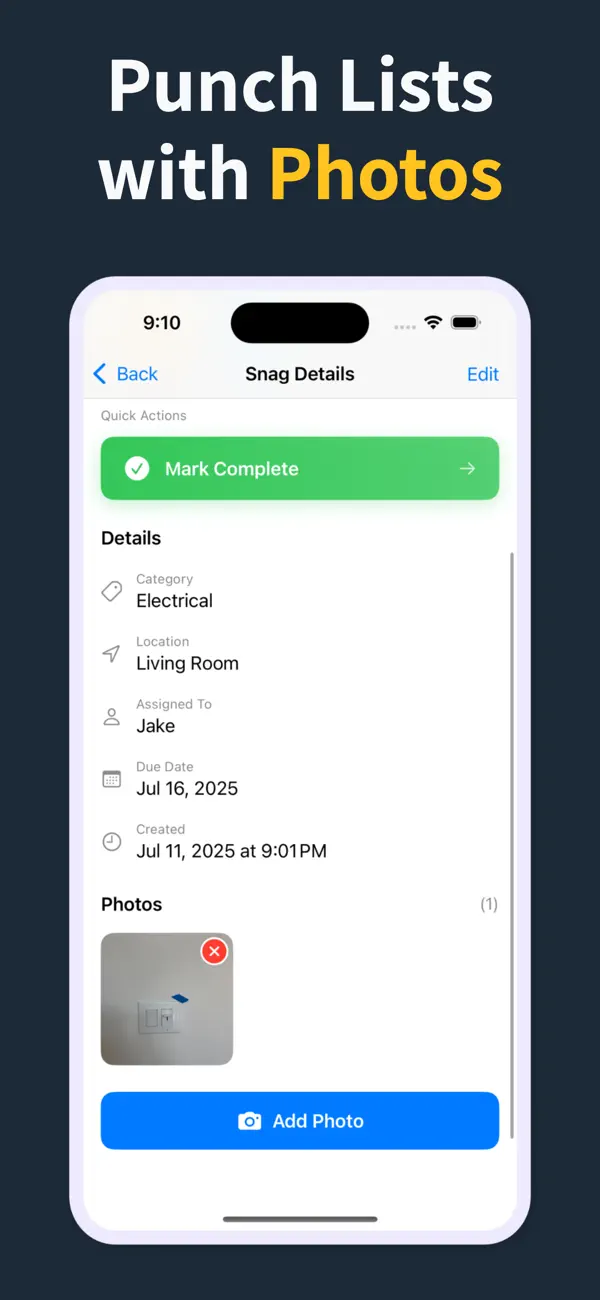
يمكن لكل سجل أن يجمع الموقع والتخصص والحالة والموعد والملاحظات والأدلة المصورة في مكان واحد.

هذا يجعل الجولات متسقة ويُسرّع إنشاء تقرير PDF في نهاية الزيارة.

03

لماذا تبقيه الفرق في الموقع

بدلاً من الملاحظات الورقية أو الجداول الثابتة، تبقى القائمة كاملة حية في الموقع وسهلة المشاركة.

يمكن للمقاولين والاستشاريين والمالكين مراجعة السجل المنظم نفسه من أول جولة حتى الاعتماد النهائي.

How it works

From walkthrough to report in three steps

Punch List & Site Audit keeps capture, assignment, review, and handoff in one iPhone workflow.

1

Create the project

Start a site, client, or renovation project and keep each job separated with progress counts and search.

2

Capture every snag on site

Add title, notes, location, photos, status, priority, category, assignee, and due date as you walk — a few taps per item, then Save & Add Another to keep the walkthrough moving.

3

Generate the PDF before you leave

Turn the list into a client-ready PDF with photos and item details right on site — no laptop, no retyping it later. Pro unlocks clean branded reports, export, and iCloud sync.

Feature proof

Specific proof from the app

Each feature below maps to the actual Punch List & Site Audit workflow: capture, annotate, organize, filter, report, and hand off.

Punch List app issue capture screen
Capture

Add snags without slowing the walk

Record the issue, description, location, and photos in one form, then use Save & Add Another to keep moving.

  • Title, description, and location fields
  • Camera and photo-library capture
  • Rapid repeat entry for walkthroughs
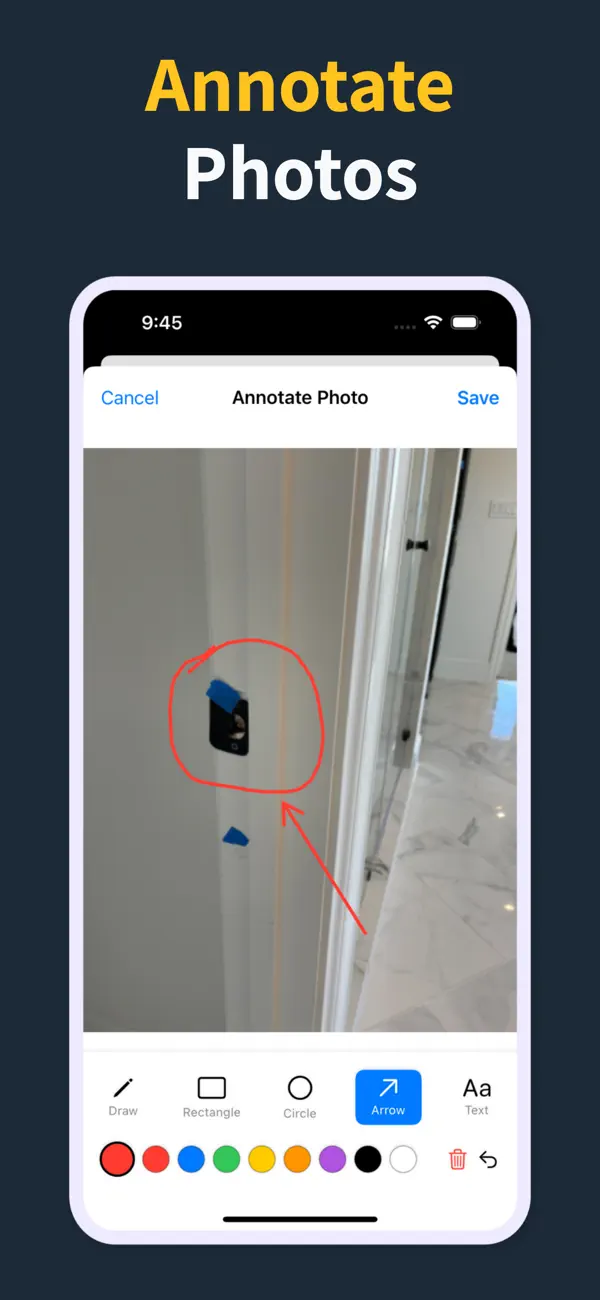
Punch List photo annotation tools
Photos

Mark exactly what needs work

Annotate photos before they go into the report, so subcontractors can see the exact defect and location.

  • Draw, rectangle, circle, arrow, and text tools
  • Undo/redo, selectable annotations, and color controls
  • Annotated images save back to the item
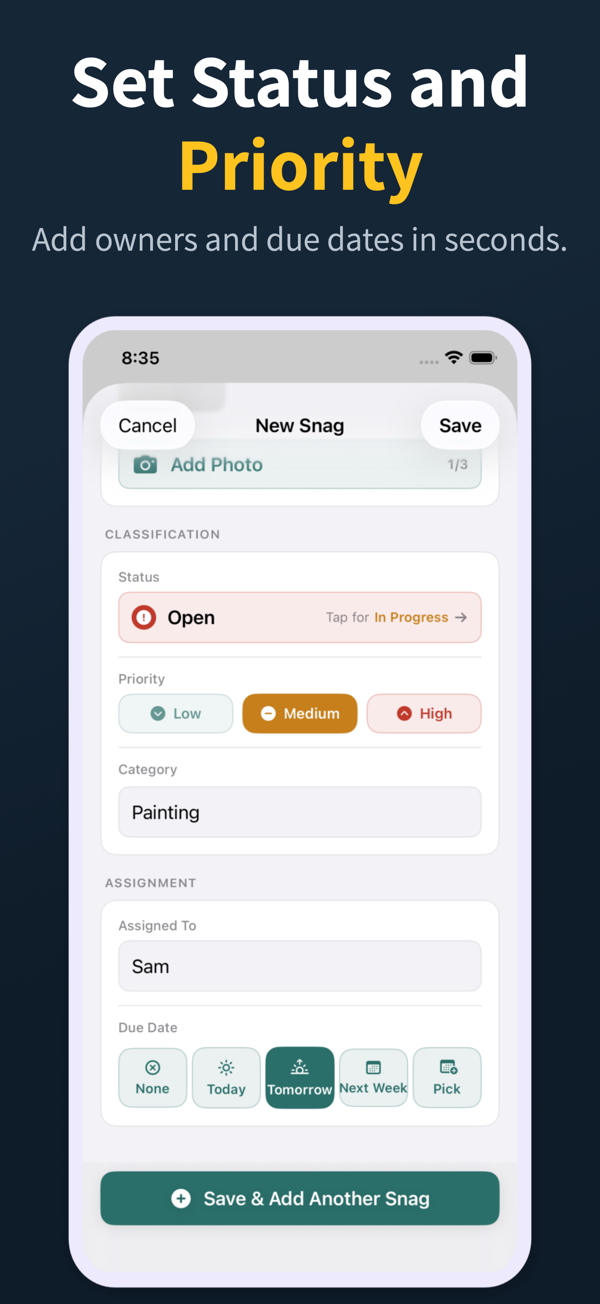
Punch List status, priority, assignment, and due date controls
Accountability

Assign, prioritize, and date the work

Each snag can carry status, priority, category, assignee, and due date so the list is actionable before handoff.

  • Open, in progress, and closed statuses
  • Low, medium, and high priority chips
  • Assignee suggestions and quick due-date choices
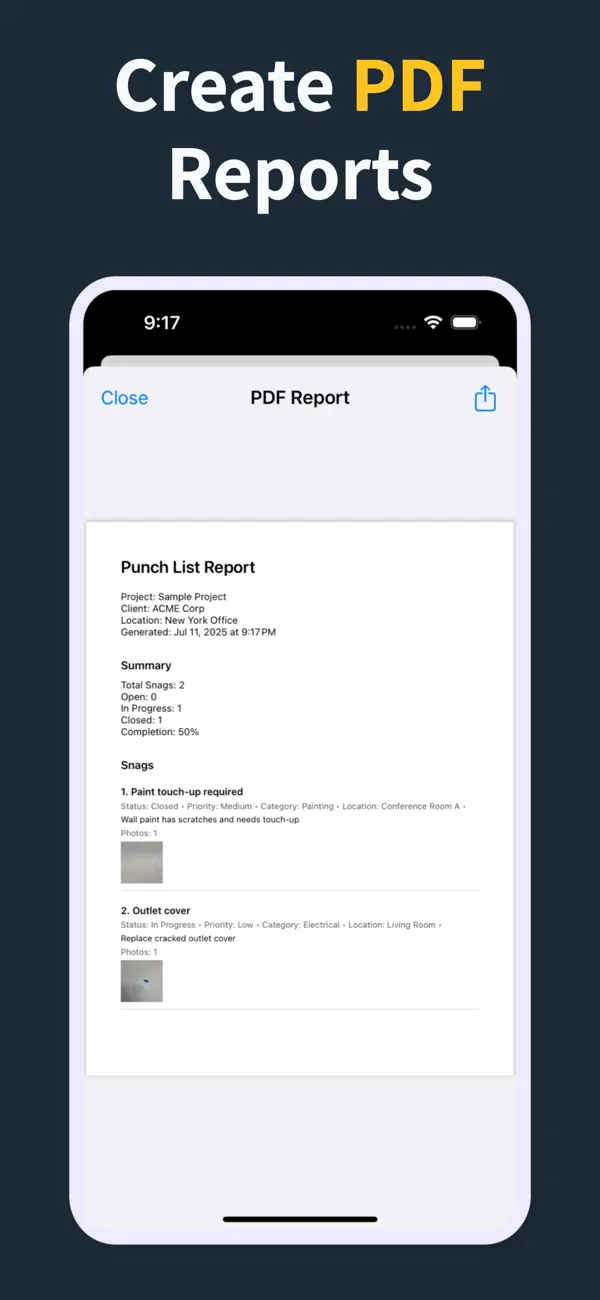
Punch List PDF report preview with photos and item details
Reports

Turn the list into a client-ready PDF on site

Generate a PDF with item numbers, status, priority, due dates, assignments, and inline photos right there in the field — so the report is done before you leave, not back at a laptop that night.

  • Build the report in the field, no laptop required
  • Pro unlocks clean PDFs and company branding
  • Share from the iOS share sheet before you drive off
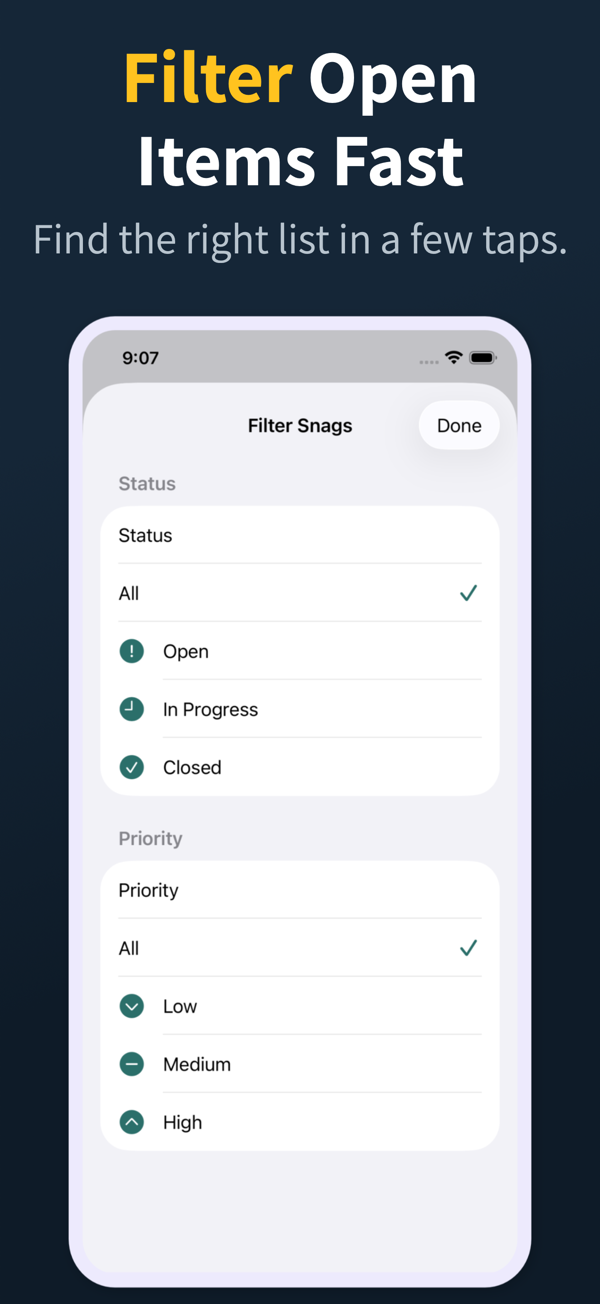
Punch List filter screen for open items and priority
Review

Find the right items fast

Search and filter snags by the fields teams actually use during closeout reviews.

  • Search title, description, location, category, and assignee
  • Filter by status, priority, category, and assignee
  • Grouped open, in-progress, and closed sections
Punch List project dashboard
Projects

Keep every site separated

Manage multiple projects with progress counts, project search, import, export, and iCloud sync for Pro workflows.

  • Project-level progress and open-item counts
  • Search across project name, client, and location
  • Pro unlocks project import/export and iCloud sync
04

أسئلة متكررة

ماذا يتضمن تقرير قائمة العيوب PDF الجيد؟

رقم بند، وغرفة أو موقعاً، ووصفاً قصيراً، وصورة أو أكثر، والتخصص المسؤول، وحالة، وتاريخاً لكل ملاحظة، إلى جانب صفحة ملخّص للمشروع. يُدرج Punch List & Site Audit كل ذلك في التصدير تلقائياً.

هل يمكنني إنشاء ملف PDF لقائمة العيوب في الميدان؟

نعم. يُنتَج ملف PDF على الجهاز فور انتهائك من الجولة — دون إنترنت ودون حاسوب محمول ودون خطوة مكتبية. يمكنك إرساله بالبريد إلى البنّاء أو العميل قبل أن تغادر موقف السيارات حتى.

هل يمكنني إضافة شعار شركتي وعلامتي التجارية إلى ملف PDF؟

نعم. يفتح Pro ملفات PDF نظيفة دون علامة مائية وبعلامتك التجارية، فيبدو التقرير الذي تسلّمه للعميل احترافياً. تُنتج النسخة المجانية معاينة بعلامة مائية لتطّلع على التنسيق أولاً.

هل يمكن للبنّاء استخدام ملف PDF دون تثبيت تطبيق؟

نعم. ملف PDF لقائمة العيوب ملف قياسي يستطيع أي شخص فتحه أو طباعته أو العمل منه. لا يحتاج مقاولو الباطن إلى حساب أو تطبيق للتصرف بناءً على بنودهم.

هل تقرير العيوب بصيغة PDF أفضل من جدول البيانات؟

لأي شيء يتضمن صوراً، نعم. تفقد الجداول الصور، وتكون غير عملية على الهاتف، وتُجبرك على إعادة كتابة الملاحظات عند إعداد التقرير. يُبقي تقرير PDF الصورة مرتبطة بكل ملاحظة ويكون جاهزاً بضغطة واحدة.

05

أدلة ذات صلة

أدر قوائم النواقص والتدقيق من iPhone

Download Punch List & Site Audit on iOS. Capture snags with photos, mark up what needs fixing, and produce a clean PDF report right there in the field — no laptop, no typing the list back up at the office that night.

تنزيل من App Store
امسح للتنزيل