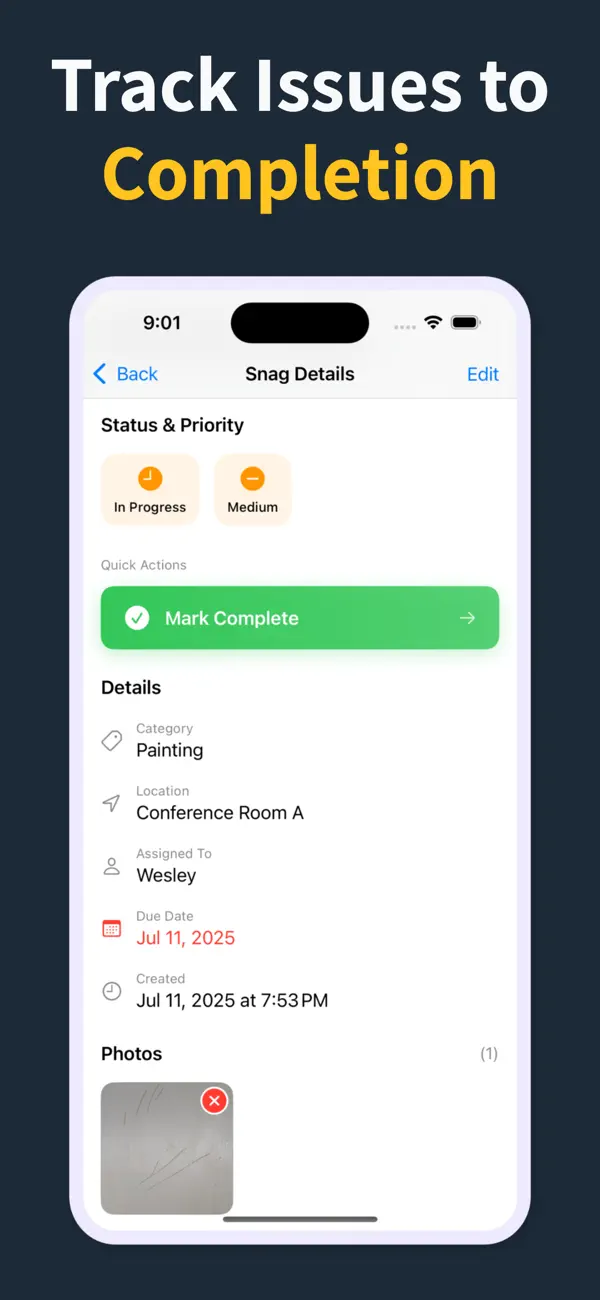
Capture snags and make the PDF on site

Snag List PDF Report

Built for Snag List PDF Report on active job sites. The app keeps field notes, trade ownership, and closeout reports in one place.

Quick answer

How do I create a snag list PDF?

Capture each snag in Punch List & Site Audit with a photo, location, and trade, then tap once to export a PDF snag report — numbered items, statuses, due dates, and inline photos — right there on site. The report generates on your iPhone, so it's finished and shared before you leave, with no laptop and no copy-typing afterwards.

Learn more: the snag list workflow.

01

What teams need from Snag List PDF Report

Snagging teams need a simple way to record defects, track fixes, and verify sign-off.

The app keeps field notes, trade ownership, and closeout reports in one place.

02

How Punch List & Site Audit fits the workflow

Each record can include location, trade, status, due date, notes, and photo evidence in one place.

That keeps walkthroughs consistent and makes PDF reporting fast at the end of the visit.

03

Why crews keep it on site

Instead of paper notes or static spreadsheets, the whole list stays live in the field and easy to share.

Contractors, consultants, and owners can review the same structured record from first walk to final sign-off.

How it works

From walkthrough to report in three steps

Punch List & Site Audit keeps capture, assignment, review, and handoff in one iPhone workflow.

1

Create the project

Start a site, client, or renovation project and keep each job separated with progress counts and search.

2

Capture every snag on site

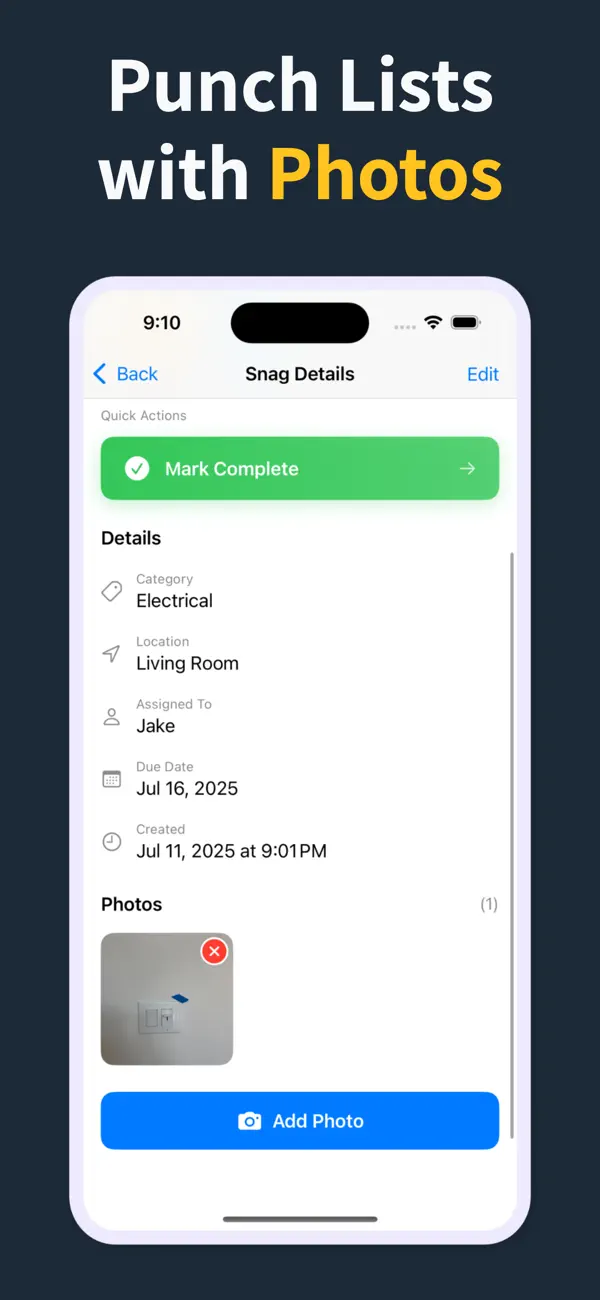
Add title, notes, location, photos, status, priority, category, assignee, and due date as you walk — a few taps per item, then Save & Add Another to keep the walkthrough moving.

3

Generate the PDF before you leave

Turn the list into a client-ready PDF with photos and item details right on site — no laptop, no retyping it later. Pro unlocks clean branded reports, export, and iCloud sync.

Feature proof

Specific proof from the app

Each feature below maps to the actual Punch List & Site Audit workflow: capture, annotate, organize, filter, report, and hand off.

Punch List app issue capture screen
Capture

Add snags without slowing the walk

Record the issue, description, location, and photos in one form, then use Save & Add Another to keep moving.

  • Title, description, and location fields
  • Camera and photo-library capture
  • Rapid repeat entry for walkthroughs
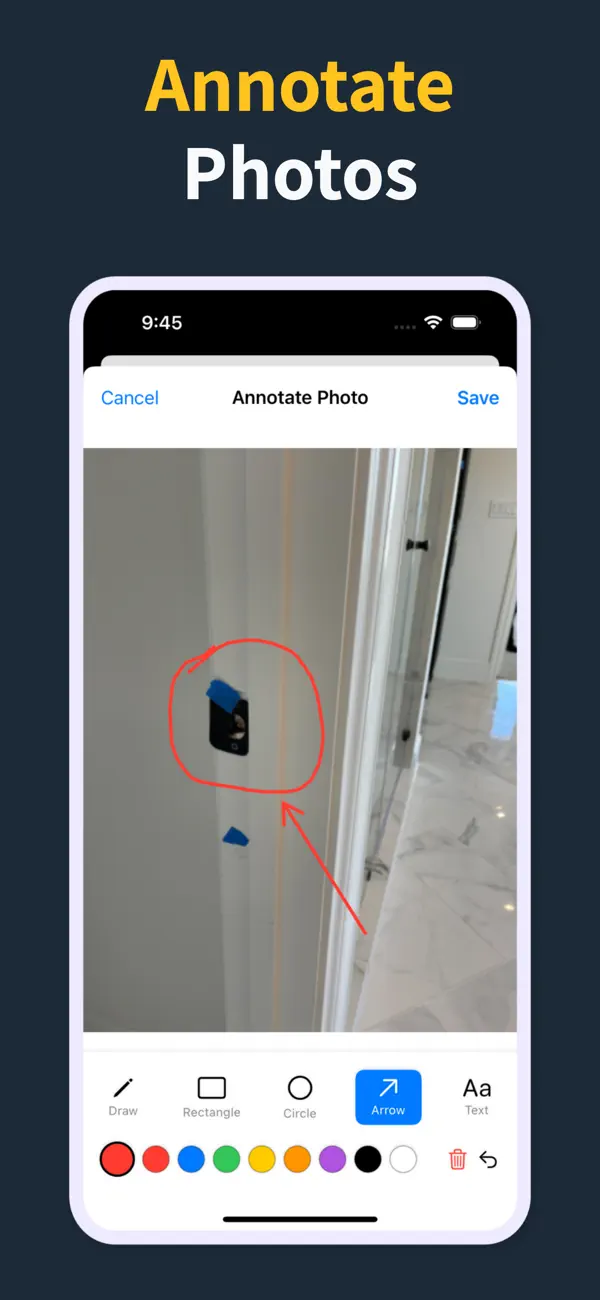
Punch List photo annotation tools
Photos

Mark exactly what needs work

Annotate photos before they go into the report, so subcontractors can see the exact defect and location.

  • Draw, rectangle, circle, arrow, and text tools
  • Undo/redo, selectable annotations, and color controls
  • Annotated images save back to the item
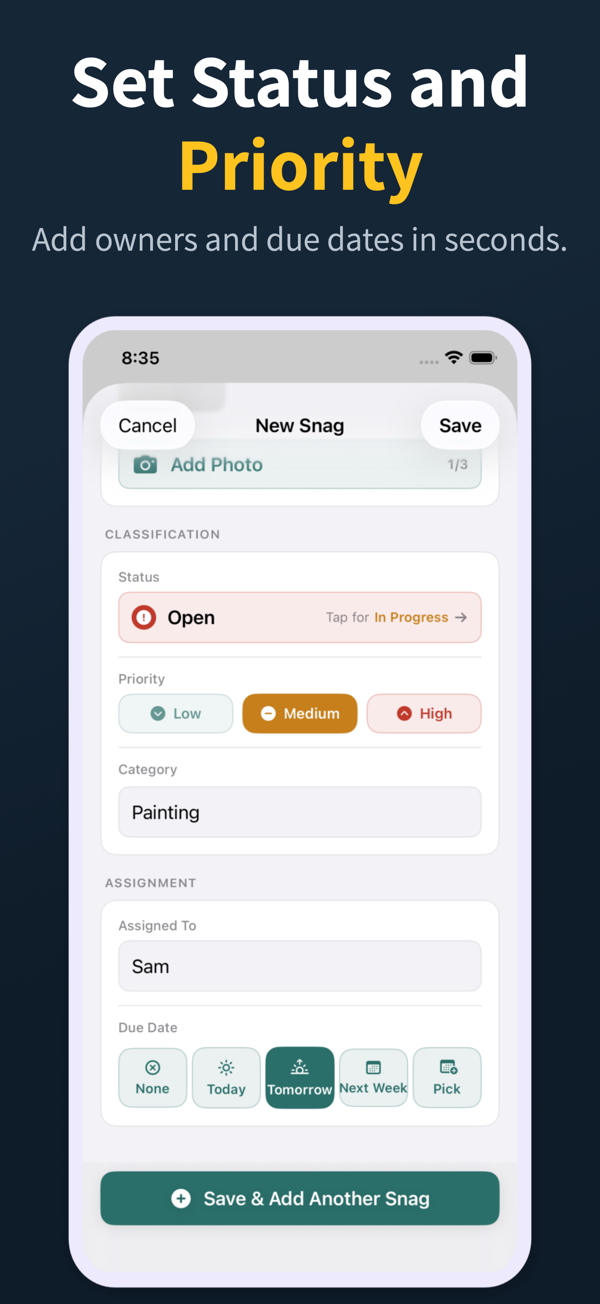
Punch List status, priority, assignment, and due date controls
Accountability

Assign, prioritize, and date the work

Each snag can carry status, priority, category, assignee, and due date so the list is actionable before handoff.

  • Open, in progress, and closed statuses
  • Low, medium, and high priority chips
  • Assignee suggestions and quick due-date choices
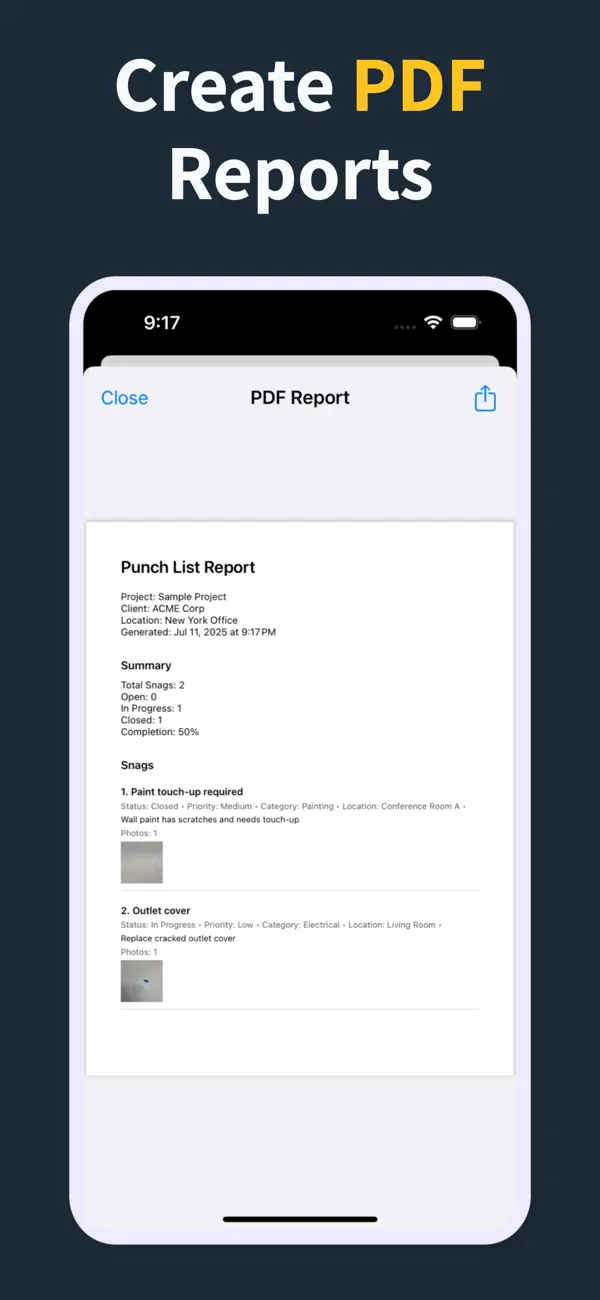
Punch List PDF report preview with photos and item details
Reports

Turn the list into a client-ready PDF on site

Generate a PDF with item numbers, status, priority, due dates, assignments, and inline photos right there in the field — so the report is done before you leave, not back at a laptop that night.

  • Build the report in the field, no laptop required
  • Pro unlocks clean PDFs and company branding
  • Share from the iOS share sheet before you drive off
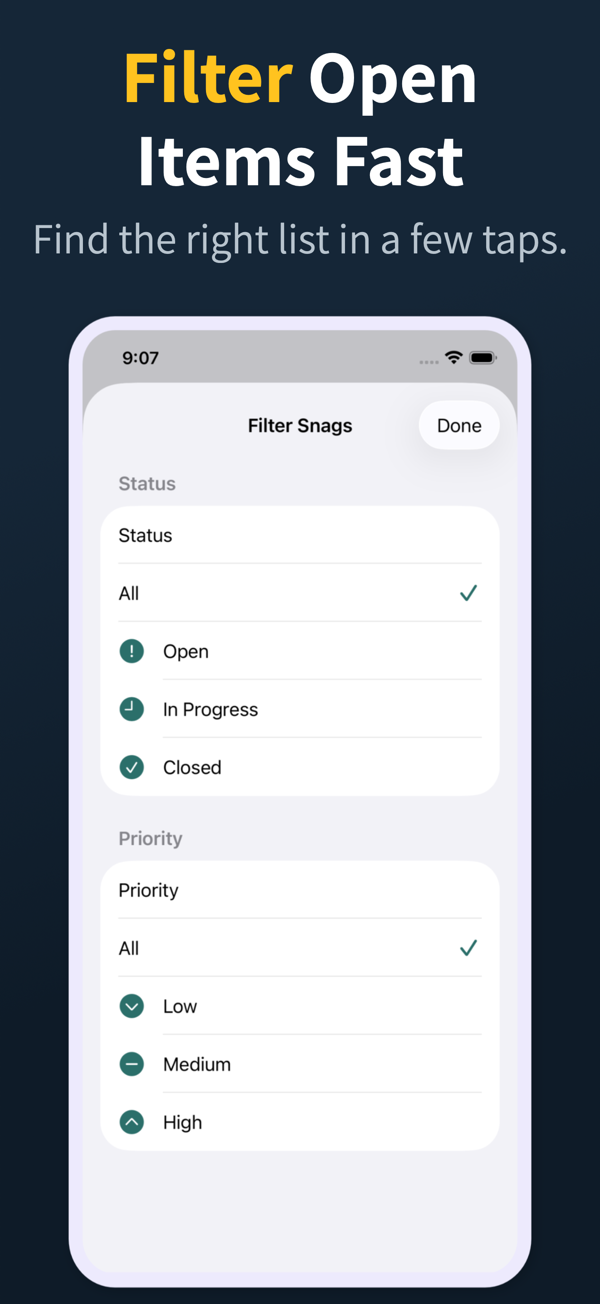
Punch List filter screen for open items and priority
Review

Find the right items fast

Search and filter snags by the fields teams actually use during closeout reviews.

  • Search title, description, location, category, and assignee
  • Filter by status, priority, category, and assignee
  • Grouped open, in-progress, and closed sections
Punch List project dashboard
Projects

Keep every site separated

Manage multiple projects with progress counts, project search, import, export, and iCloud sync for Pro workflows.

  • Project-level progress and open-item counts
  • Search across project name, client, and location
  • Pro unlocks project import/export and iCloud sync
04

Frequently asked questions

What does a good snag list PDF include?

An item number, a room or location, a short description, a photo or several, a responsible trade, a status, and a date for every snag, plus a project summary. Punch List & Site Audit builds all of that into the export automatically.

Can I generate the snag list PDF in the field?

Yes. The PDF is produced on the device as soon as you finish the walk — no internet, no laptop, no office step. You can email it to the builder or client before you've left the car park.

Can I add my company logo and branding to the PDF?

Yes. Pro unlocks clean, watermark-free PDFs with your company branding, so the report you hand a client looks professional. The free tier produces a watermarked preview so you can see the format first.

Can the builder use the PDF without installing an app?

Yes. The snag list PDF is a standard file that anyone can open, print, or work from. Subcontractors don't need an account or the app to act on their items.

Is a PDF snag list better than a spreadsheet?

For anything with photos, yes. Spreadsheets lose the images, are awkward on a phone, and force you to retype notes when reporting. A PDF snag report keeps the photo attached to each item and is ready in one tap.

05

Related Guides

Run punch lists and site audits from your iPhone

Download Punch List & Site Audit on iOS. Capture snags with photos, mark up what needs fixing, and produce a clean PDF report right there in the field — no laptop, no typing the list back up at the office that night.

Download on the App Store
Scan to download